


Three beginner AI projects you can finish in an afternoon, with free tools and no code: turn your notes into a quiz with Gemini (about 15 minutes), turn the same notes into a podcast with NotebookLM (about 20 minutes), and restore an old family photo with Gemini (about 15 minutes). We ran all three on Nov 26, 2026 with a free Google account. Each project below has the starter file, the exact prompt, what you should get, and what went wrong in our run.
| Project | Free tool | Time | You learn |
|---|---|---|---|
| 1. Notes to quiz | Gemini | 15 min | Writing a clear prompt, checking answers against a source |
| 2. Notes to podcast | NotebookLM | 20 min | Adding sources, settings that change the output |
| 3. Restore a family photo | Gemini | 15 min | Editing images with words, spotting what AI gets wrong |
What do you need before you start?
- A free Google account (Gemini and NotebookLM both use it).
- Our starter notes: starter-notes-how-llms-work.txt, one page on how large language models work (285 words). Or a page of your own class notes.
- For project 3, an old photo you own, scanned or photographed flat in good light.
Project 1: How do you turn notes into a quiz with AI?
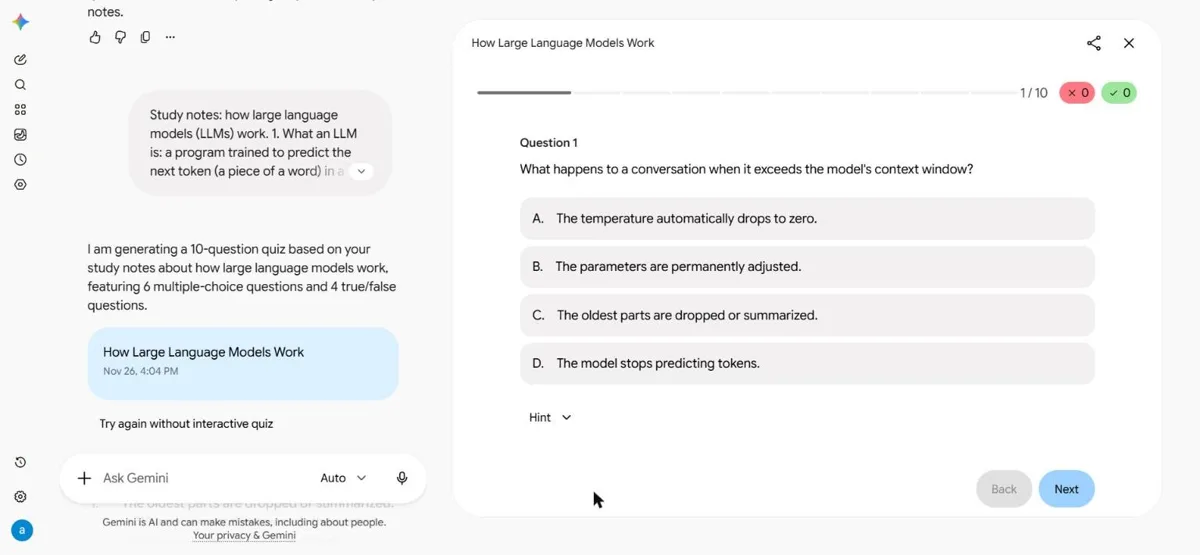
Paste your notes into Gemini with a prompt that sets the format and forbids outside facts. In our run, Gemini returned 10 questions in under 25 seconds as an interactive quiz, with an answer key that quoted the notes for each answer. We checked all 10 answers against the notes: 10 correct.
Prompt · tested in Gemini, Nov 26, 2026
Turn my study notes below into a 10-question quiz: 6 multiple-choice questions (4 options each) and 4 true/false questions. Use only facts that are in my notes. Put the answer key at the end, with one line per answer explaining why, and quote the part of my notes it comes from. MY NOTES: [paste your notes here]
- Open gemini.google.com and sign in.
- Paste the prompt and your notes in the same message. Press Shift+Enter for a new line: in our first try, Enter sent the prompt before the notes and Gemini replied that no notes were included.
- Take the quiz, then check every answer in the key against your notes. The quotes make that a two-minute job.
Done when: you have 10 questions and every answer in the key points to a line in your notes.
Project 2: How do you turn notes into a podcast?
Add your notes as a source in NotebookLM, set the language, then generate an Audio Overview: two AI hosts discuss your notes. Ours took about 4 minutes to generate and ran 5 minutes 54 seconds. The full walkthrough, with every setting, is in how to turn notes into a podcast.
- Open notebooklm.google.com, create a notebook and add your notes (paste them with “Copied text” or upload the file).
- If your Google account is not in English, set Settings, Output language, English. Our notebook was titled half in Russian and half in French before we did.
- Click Audio Overview, pick Deep Dive and Short, and tell the hosts who it is for.
- Listen once with your notes open and note anything the hosts say that is not in them.
Done when: you have an episode you can replay on a walk, and a list of anything to double-check.
Project 3: How do you restore an old photo with AI?
Upload the photo to Gemini with a prompt that lists the damage and locks the faces. In our test on a damaged 1910s portrait, Gemini removed stains and scratches in under 30 seconds and kept both faces; the output was smaller than the scan (880 × 1,197 pixels), so it suits sharing more than large prints.
- Scan or photograph the print flat, without glare.
- In Gemini, click +, Upload files, choose the photo and confirm you have the rights to it.
- Paste the restoration prompt from our old photo restoration prompts and adjust the number of people and the background.
- Compare the faces in both versions at full size before you share it.
Done when: the damage is gone and the people still look like themselves.
What should you try after these three?
Pick a task you do every week and repeat the same pattern: give the AI your own material, set the format, then check the output against the source. Free courses that go further are listed in free AI courses by level, and the words you will meet are in the AI glossary.
Questions about beginner AI projects
Do I need to code for these projects? No. All three run in the browser with a free Google account.
Which AI project is best for a complete beginner? Notes to quiz: one prompt, a result in under a minute, and an answer key you can check yourself.
Are these projects free? Yes, on the free plans of Gemini and NotebookLM as of Nov 26, 2026. Limits apply to how much you can generate per day.
Can I use my own notes instead of yours? Yes, and you should after the first run. Keep them to a page or two so you can check the output.
Update log
Nov 26, 2026: page published; all three projects run on free Google accounts the same day.