Neural Minute may earn a commission if you buy through our links. It doesn’t change our verdicts. How we test · How we make money
Google Gemini is the best AI for photo editing for most people: you upload a photo, type the change you want, and it costs nothing with a Google account. Google Photos is the free pick for quick fixes on your phone. Adobe Photoshop is the one to pay for when every pixel matters. Nine tools are scored below.
What are the best AI photo editors right now?
Best overall: Google Gemini. For anyone who wants to fix a photo without learning an editor. You describe the edit in plain English, and editing is included in the free plan. It scored 7.6 out of 10, the highest of the nine. In our own run it restored a damaged 1910s portrait in under 30 seconds.
See Google Gemini plansBest free pick on your phone: Google Photos. For people who edit the photos already sitting in their camera roll. Magic Eraser, Unblur and Portrait Light cost $0 and need no subscription. Score: 7.4 out of 10.
Get Google PhotosBest for precise, professional edits: Adobe Photoshop. For photographers, designers and anyone who needs to control the result. Generative Fill puts each AI edit on its own layer, so you can undo or mask it later. It got the top marks of the nine for editing range and control. Buy it through Adobe’s Photography plan: $19.99 a month with Lightroom and 1,000 credits, against $22.99 and 25 credits for Photoshop alone.
See Adobe Photoshop plansHow do the nine AI photo editors compare?
| Tool | Our score | Best for | Entry price | Free option | Key fact | Watch out |
|---|---|---|---|---|---|---|
| Google Gemini Visit site | 7.6/10 | Editing a photo by describing the change | Free; Google AI Plus $4.99/mo, AI Pro $19.99/mo | Yes, with a Google account | Restored our damaged 1910s portrait in under 30 seconds on the free plan | Our file came back at 880 × 1,197 px, smaller than the scan; 18+ only |
| Google Photos | 7.4/10 | Free fixes on your phone | Free; 100 GB storage $1.99/mo | Yes: Magic Eraser, Unblur, Portrait Light | AI editing tools open to every user with no subscription | 10 free Magic Editor saves a month; needs iOS 18 and 3 GB RAM |
| Adobe Lightroom | 7.2/10 | Hobby photographers on a budget | $11.99/mo (annual plan, billed monthly) | Free phone app; 7-day trial of the plan | 250 generative credits a month and 1 TB of storage | Annual commitment; generative edits capped by credits |
| Adobe Photoshop | 7.1/10 | Precise, professional edits on layers | $22.99/mo (annual plan, billed monthly) | 7-day trial | Generative Fill puts each AI edit on its own layer; Photography plan is $19.99/mo with 1,000 credits | 25 generative credits a month; 12-month commitment |
| Photoroom | 6.0/10 | Product photos for online sellers | Pro $12.99/mo or $89.99/yr | Yes, personal use only, 100 exports a month | Pro includes 1,000 exports and 8,000 AI credits a month | Free plan can't be used commercially; iPhone app needs iOS 26 |
| Fotor | 5.8/10 | Cheap one-click enhancements | Pro $8.99/mo or $47.99/yr in the iPhone app | Yes, with limited credits | Free plan, and a Pro tier under $9 a month | Free credit amount isn't published |
| Canva | 5.7/10 | Photos that end up in a design | Pro $18/mo or $144/yr | Yes, with limited AI access | Magic Eraser and Magic Edit sit inside the design editor | Background remover is for paid plans only |
| Luminar Neo | 5.5/10 | Photographers who want to buy once | One-time desktop license; $417 before discount, usually sold for far less | No; 30-day money-back guarantee | Perpetual license on 2 devices with GenErase, GenSwap and GenExpand | Generative tools included for 1 year only |
| Remini | 3.8/10 | Sharpening blurry faces | Lite from $4.99/week, Pro $9.99/week in the iPhone app | Free download; subscription for premium features | One-tap enhancement for blurry, low-resolution portraits | Weekly billing: Pro runs about $43 a month |
Prices checked on each vendor’s pricing page on Nov 26, 2026. Tool names link to our full review when we have one. Scores come from our scoring grid below.
US prices in dollars, checked on Nov 26, 2026. Annual plans are shown as their monthly equivalent only when the vendor shows them that way.
What happened when we restored an old photo in Gemini?
We have one first-hand result for this guide, and it shaped Gemini’s scores. We uploaded a scan of a stained, scratched 1910s studio portrait to Gemini’s free plan with a single prompt. The prompt listed the damage and told the model to keep both faces, the clothes and the backdrop unchanged.
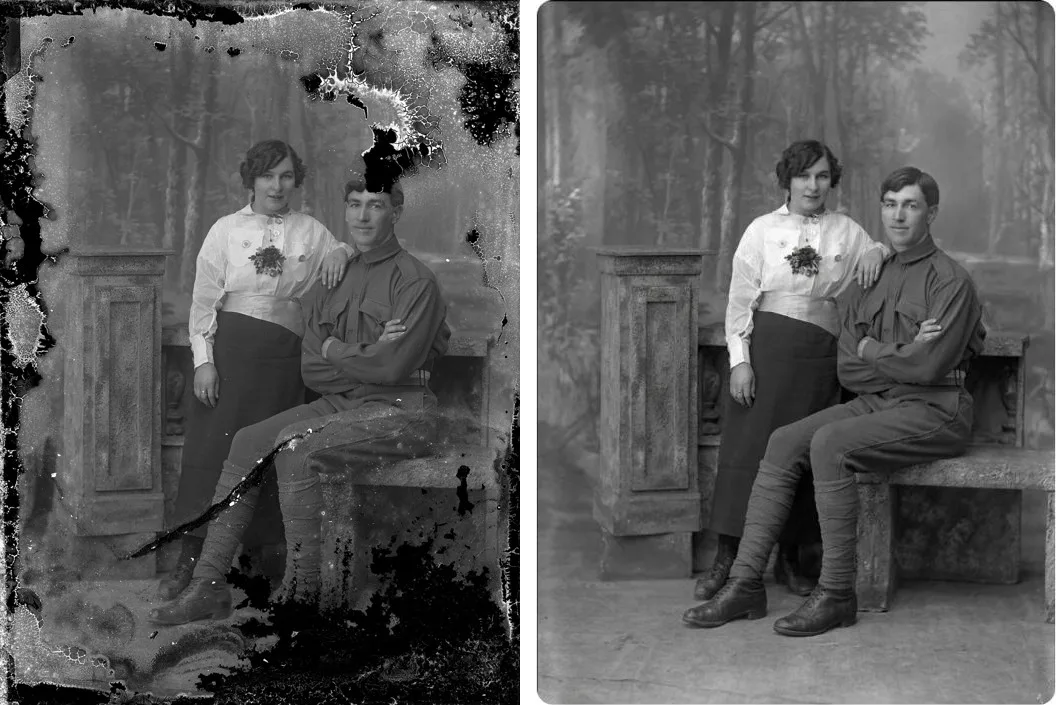
The good part: the restoration took under 30 seconds. The large stain, the dark patches on the edges, the crack and the scratches were gone. The faces, the brooch, the bench and the painted backdrop stayed in place, and Gemini did not add color.
The bad part: the file came back smaller than the one we sent. We measured each image in the browser.
| Step | What Gemini said | Image size we measured |
|---|---|---|
| Original scan | Not applicable | 1,280 × 1,741 px |
| Restore, with “high-resolution” in the prompt | “The photograph is now clean and high-resolution” | 880 × 1,197 px |
| Follow-up asking for 8K | “enhanced to 8K-equivalent quality” | 896 × 1,200 px |
At 300 dots per inch, 896 × 1,200 pixels prints at about 3 × 4 inches. So a chat AI is a fast way to repair or change a photo, and a poor way to enlarge one. The exact prompt, the follow-ups and the full write-up are in our AI prompts to restore old photos.
How does each AI photo editor score?
Each tool gets a score out of 10 on five criteria. The final score is the weighted average. The order of this page follows it.
| Tool | AI editing range (30%) | Free access (20%) | Paid price (20%) | Control and output (20%) | Ease of use (10%) | Final score |
|---|---|---|---|---|---|---|
| Google Gemini | 8 | 9 | 8 | 4 | 10 | 7.6 |
| Google Photos | 6 | 9 | 9 | 5 | 10 | 7.4 |
| Adobe Lightroom | 7 | 6 | 8 | 8 | 7 | 7.2 |
| Adobe Photoshop | 10 | 3 | 5 | 10 | 5 | 7.1 |
| Photoroom | 6 | 5 | 7 | 5 | 8 | 6.0 |
| Fotor | 6 | 5 | 7 | 4 | 8 | 5.8 |
| Canva | 6 | 4 | 6 | 5 | 9 | 5.7 |
| Luminar Neo | 8 | 2 | 4 | 7 | 5 | 5.5 |
| Remini | 3 | 4 | 3 | 3 | 9 | 3.8 |
AI editing range (30%). How many kinds of AI edit the vendor documents: removing objects, adding or replacing content, extending the frame, restoring, enhancing, cutting out backgrounds. Photoshop gets 10 because Generative Fill, Generative Expand and reference images cover all of them. Gemini and Luminar Neo get 8: Gemini takes any change you can describe and blends several photos, and Luminar lists GenErase, GenSwap, GenExpand and Restoration. Remini gets 3 because its listing is about one job, sharpening faces and old photos.
Free access (20%). What you can do without paying, based on published limits. Gemini and Google Photos get 9: AI editing is free with a Google account. Lightroom gets 6 for its free phone app. Photoroom and Fotor get 5 for free plans with tight caps (Photoroom publishes 100 exports a month, personal use only). Photoshop gets 3 for a 7-day trial, and Luminar Neo gets 2 because it only offers a 30-day refund.
Paid price (20%). The cheapest paid step and the strings attached. Google Photos gets 9 because its AI tools need no plan. Gemini and Lightroom get 8: Google AI Plus is $4.99 a month, and Lightroom is $11.99 with 250 generative credits. Photoshop gets 5 for $22.99 with a 12-month commitment and 25 credits. Luminar Neo gets 4 because its generative tools stop after a year unless you subscribe. Remini gets 3 for a weekly price of $9.99.
Control and output (20%). Whether you can direct, undo and export the edit at full quality. Photoshop gets 10 for nondestructive generative layers. Lightroom gets 8 for masks, presets and a 4x upscale. Luminar Neo gets 7: Digital Camera World’s reviewer found GenErase very effective but the generative results uneven. Gemini gets 4 because of our own test: the restored file was smaller than the original, even after we asked for 8K.
Ease of use (10%). How little you need to learn. Gemini and Google Photos get 10: one is a chat box, the other is a tap inside the gallery you already use. Photoshop and Luminar Neo get 5 because they are full desktop editors.
Google Gemini: best for editing a photo by describing the change
Who it’s for: anyone who knows what they want changed and has no wish to learn brushes, masks or layers.
Why it’s on the list:
- It edits from a sentence. Upload a photo, type the change, and Gemini’s Nano Banana image model applies it. Google’s help page also covers uploading several images and merging them into a new one.
- Editing is in the free plan. The free tier costs $0 with a Google account. Our old-photo restoration ran on it.
- It is fast. Our restoration came back in under 30 seconds from one prompt.
- It runs everywhere. The same chat works in a browser and in the iPhone and Android apps.
The limits: output size. Our 1,280 × 1,741 pixel scan came back at 880 × 1,197, and a request for 8K returned 896 × 1,200. Google also sets a daily image quota without publishing the number, and image editing is closed to users under 18.
Price: free. Google AI Plus is $4.99 a month and Google AI Pro is $19.99 a month for higher limits. Paid plans also open Nano Banana Pro, which redoes an image with more detail.
Pick it if you want an object removed, a background swapped or an old print cleaned up in a minute. Skip it if you need a print-size file or pixel-level control.
More detail in our Google Gemini review and our Nano Banana review.
See Google Gemini plansGoogle Photos: best for free fixes on your phone
Who it’s for: people who shoot on a phone and want a cleaner picture in two taps.
Why it’s on the list:
- The AI tools are free. Magic Eraser removes distractions, Unblur sharpens soft shots and Portrait Light fixes lighting. Google opened these tools to every user with no subscription.
- It works on iPhone too. The app needs iOS 18 and at least 3 GB of RAM for most editing features.
- It can extend a photo. Auto frame uses AI to recompose a shot or fill in a wider background.
- Your library is already there. Every Google account comes with 15 GB of storage, so there is nothing to import.
The limits: when Google opened Magic Editor to everyone, it set the free allowance at 10 saves a month. Going past that takes a Pixel phone or a Google One plan of 2 TB or more. Editing by voice or text with Ask Photos is for adults only and is not offered in every country.
Price: free. Extra storage starts at $1.99 a month for 100 GB in the iPhone app.
Pick it if your photos live on your phone and you want one-tap cleanup. Skip it if you edit RAW files or need layers.
Get Google PhotosAdobe Lightroom: best budget pick for hobby photographers
Who it’s for: people who take a lot of photos and want them to look consistent, on a phone and a computer.
Why it’s on the list:
- It is the cheapest way into Adobe’s generative tools. The Lightroom plan is $11.99 a month and includes 250 generative credits and 1 TB of cloud storage. Photoshop alone gives you 25 credits for almost twice the price.
- The AI is built for real photos. Generative Remove erases objects, Generative Expand widens the frame and Lens Blur adds a portrait effect. Adaptive Presets whiten teeth, smooth skin or lift a sky in one click.
- It can enlarge. Adobe lists a generative upscale built on Topaz Gigapixel, up to 4x.
- The phone app is free to start. Adobe describes Lightroom for mobile as a free app for iOS and Android; premium features need a plan.
The limits: the $11.99 price is an annual plan billed monthly, and generative edits draw on a cap of 250 credits a month. For adding new objects to a scene, Adobe’s tool is Generative Fill in Photoshop.
Price: $11.99 a month (annual plan, billed monthly), with a 7-day free trial.
Pick it if you edit whole sets of photos and want AI cleanup inside a real photo editor. Skip it if you edit one photo a month: Gemini or Google Photos will do it for free.
See Adobe Lightroom plansAdobe Photoshop: best for precise, professional edits
Who it’s for: photographers, designers and retouchers who must control exactly what changes and what stays.
Why it’s on the list:
- Generative Fill works on a selection. You select an area, type a prompt and get several variations. Each result lands on its own Generative Layer, so the original pixels stay untouched.
- It extends and matches. Generative Expand grows the canvas past the photo’s borders. Reference Image lets you upload an example to steer the result.
- You can choose the model. On desktop, Generative Fill can run on Adobe’s Firefly model or on partner models, including Gemini 3 with Nano Banana Pro and FLUX.2 pro.
- It is the reference for everyone else.
The limits: the single-app plan includes 25 generative credits a month and requires a 12-month commitment. There is no free plan, only a 7-day trial.
Price: $22.99 a month (annual plan, billed monthly) or $263.88 a year paid up front. One number to know before you buy: Adobe’s Photography plan bundles Photoshop and Lightroom for $19.99 a month with 1,000 credits. That is $3 less than Photoshop alone, with 40 times the credits.
Pick it if you already edit in Photoshop or need layered, reversible AI edits for client work. Skip it if you only want to erase a stranger from a vacation photo.
See Adobe Photoshop plansPhotoroom: best for product photos
Who it’s for: people who sell online and need clean, consistent listing photos from a phone.
Why it’s on the list:
- The core tools don’t eat credits. Background Remover, Retouch, AI Fill, AI Expand and Image Enhancer are listed as included on every paid plan.
- The volume is published. Pro comes with 1,000 exports and 8,000 AI credits a month, so you can plan a catalog.
- It handles batches. The app edits a whole product catalog at once and exports sizes for Shopify, Amazon and Etsy.
The limits: the free plan is for personal, non-commercial use only and stops at 100 exports a month. The iPhone app now requires iOS 26.
Price: Pro is $12.99 a month or $89.99 a year.
Pick it if you list products every week. Skip it if you edit family or travel photos: it is built around objects, not scenes. For credit-based product shoots and upscaling, see our Claid AI review.
See Photoroom plansFotor: best for cheap one-click enhancements
Who it’s for: casual users who want a browser or phone editor with AI buttons and a low monthly price.
Why it’s on the list:
- It has a free plan. Fotor’s Basic plan is labeled “free forever” and comes with a small credit allowance.
- The paid step is low. Fotor Pro is $8.99 a month in the iPhone app. On the web, Pro comes with 300 credits a month.
The limits: Fotor does not say how many free credits you get. The app has also moved toward marketing tools, such as product visuals, AI avatars and video ads, and photo editing is no longer its only focus.
Price: Fotor Pro is $8.99 a month or $47.99 a year in the iPhone app.
Pick it if you want quick enhancements for social posts on a small budget. Skip it if you want a published free allowance before you commit time to a tool.
See Fotor plansCanva: best when the photo is going into a design
Who it’s for: people making a flyer, a social post or a slide who need the photo fixed on the way.
Why it’s on the list:
- The photo tools sit inside the design. Canva’s app removes backgrounds in one tap, erases objects with Magic Eraser and swaps or adds content with Magic Edit.
- People like the app. It holds 4.9 stars from about 3.6 million ratings on the US App Store.
- It is the standard for layouts. Text, templates and resizing are in the same window as the photo.
The limits: the background remover is for paid plans only. The free plan gets limited access to Canva’s AI. Canva is a design tool first, built around layouts and templates.
Price: Canva Pro is $18 a month or $144 a year for one person.
Pick it if the edited photo ends up in a post, an ad or a deck. Skip it if the photo itself is the final product.
See Canva plansLuminar Neo: best for photographers who want to buy once
Who it’s for: photographers who dislike subscriptions and edit on a Mac or a Windows PC.
Why it’s on the list:
- The license is perpetual. One purchase covers the desktop editor on 2 devices, with a 30-day money-back guarantee.
- The generative set is complete. GenErase removes objects, GenSwap replaces them and GenExpand widens the frame. There is also a Restoration tool for old photos.
- It has been tested in the open. Digital Camera World’s reviewer called GenErase very effective at removing people and objects.
- It plugs into what you own. It runs as a plugin for Lightroom Classic and for Photos on a Mac.
The limits: the generative tools, Restoration and the AI Assistant are included for one year. After 365 days they need a Luminar Prime subscription. The same Digital Camera World review found the generative results uneven, with one blurry GenExpand result.
Price: the desktop license is a one-time purchase. Skylum shows $417 as the full price and often sells it for far less, so look at the current price before you buy.
Pick it if you want a one-time purchase and mostly use the non-generative tools, such as sky replacement and relighting. Skip it if object removal is why you are buying: that part is the one that expires.
See Luminar Neo plansRemini: best for sharpening blurry faces
Who it’s for: people with a soft, grainy or low-resolution portrait they want to save.
Why it’s on the list:
- It does one job in one tap. Remini turns blurry, pixelated or damaged photos into sharper ones, with a focus on faces.
- It is widely used. The iPhone app holds 4.6 stars from about 361,000 ratings on the US App Store.
- It runs on older phones. The app only needs iOS 15.
The limits: the pricing. Remini Pro is listed at $9.99 a week on the US App Store, which adds up to more per month than Photoshop. A sharpened face is also a reconstruction: compare it with the original before you print or share it.
Price: free to download. Remini Lite starts at $4.99 a week and Remini Pro is $9.99 a week in the iPhone app.
Pick it if you have a handful of portraits to rescue and will cancel right after. Skip it if you need general editing: its listing is about enhancement, not removing objects or swapping backgrounds.
See Remini plansHow do you choose an AI photo editor?
Three questions decide almost every case.
- How often do you edit? For a photo or two a month, a free tool is enough: Gemini for changes you describe, Google Photos for one-tap cleanup. A subscription starts to pay off when you edit every week.
- How big must the file be? For a phone screen or a social post, any tool here works. For a print, you need an editor that keeps the original resolution, such as Lightroom or Photoshop, or a dedicated upscaler after the edit.
- Who must approve the result? If it is only you, speed wins. If it is a client or a marketplace, you need edits you can adjust and repeat: layers in Photoshop, batches in Photoroom.
The right tool by task:
- Remove a person or object: Magic Eraser in Google Photos on a phone; Generative Remove in Lightroom; Generative Fill in Photoshop for hard cases.
- Change something by describing it: Gemini.
- Extend a photo: Generative Expand in Photoshop or Lightroom; Auto frame in Google Photos.
- Restore an old print: Gemini for the repair, then a dedicated upscaler for size; Remini when the problem is a blurry face.
- Cut out a product: Photoroom.
Mistakes to avoid:
- Trusting the words “high resolution.” Gemini told us our file was “8K-equivalent” while it measured 896 × 1,200 pixels. Open the file and check its size.
- Buying Photoshop alone. The Photography plan costs $3 less a month and adds Lightroom and 975 more credits.
- Paying by the week. A $9.99 weekly plan costs about $43 a month. Set a reminder to cancel.
- Counting on a perpetual license for AI. With Luminar Neo, the editor is yours for good, but the generative tools are included for one year.
- Using a free plan for a store. Photoroom’s free plan is for personal use only.
Tools we left out, and why. Picsart, Pixlr, Photopea and Lensa are popular too. Picsart and Pixlr cover the same ground as Fotor and Canva. Photopea is a free browser editor in the style of Photoshop, and we kept this list to tools built around AI edits. Lensa is built for selfie retouching and avatars. ChatGPT can also transform a photo you upload; it is covered in our ChatGPT review.
How we scored these tools
The scores rest on four kinds of evidence, all gathered on Nov 26, 2026:
- Each vendor’s own pricing page, help center and US App Store listing, for prices, limits and features.
- Our own Gemini run on a damaged 1910s portrait, with the image sizes we measured.
- Our published reviews of Google Gemini, Nano Banana and Claid AI.
- One independent hands-on review, Digital Camera World on Luminar Neo, for results we have not produced ourselves.
Only Gemini has a hands-on result from us in this guide. The other eight scores come from published facts, so read them as a buying comparison and not as a lab test.
Questions about AI photo editing
What is the best AI for photo editing? Google Gemini for most people. You upload a photo and type the change, and editing is included in the free plan. For free one-tap fixes on a phone, use Google Photos. For professional work that needs layers and precise control, Adobe Photoshop is the stronger choice at $22.99 a month.
Can I edit photos with AI for free? Yes. Gemini edits photos from a text prompt at no cost with a Google account. Google Photos includes Magic Eraser and Unblur for free. Lightroom’s phone app is free to start, and Fotor has a free plan with a small credit allowance. Photoshop only offers a 7-day trial.
Can ChatGPT edit photos? Yes. The ChatGPT app can transform an existing image from a short text instruction, as well as generate new ones. Like Gemini, it works by conversation, so it is quick for simple changes and slow for precise ones. Check the size of the file you get back before you print it.
What is the best AI to restore old photos? Start with Gemini. In our test it removed stains, scratches and torn edges from a 1910s portrait in under 30 seconds and kept the faces unchanged. The result was only 880 × 1,197 pixels, so follow it with a dedicated upscaler. Use Remini when the main problem is a blurry face.
Is Photoshop’s AI worth paying for? Yes if you already edit in Photoshop or need AI edits on separate layers. The single-app plan includes only 25 generative credits a month. The Photography plan is the better buy at $19.99 with 1,000 credits. If you erase an object twice a month, Gemini or Google Photos does it for free.
Can I use AI-edited photos commercially? Usually yes on a paid plan, but the terms differ by tool. Photoroom’s free plan is limited to personal, non-commercial use. Adobe says Generative Fill is built on its Firefly model, trained on licensed and public domain content. Read our guide on what AI tools allow commercially before you publish.
Keep reading: all our best AI for guides, the best AI apps for iPhone, and the prompts we used to restore an old photo.
Update log
Nov 26, 2026: guide rebuilt with nine tools, a scoring grid, US prices and our Gemini restoration test.