To install a skill in Perplexity, open Plugins, go to the Skills tab, click Add custom, choose Upload plugin or skill, drop your SKILL.md file and click Submit. We did it on a free account: the skill was on at once and changed the very next answer to the format it describes. Skills run in Perplexity Computer, not in plain Search.
Tested on Nov 26, 2026 with a small meeting-summary skill you can download below.
What is a skill in Perplexity?
A skill is a set of written instructions that Perplexity Computer loads when your request matches its description. Plugins bundle skills with connectors (Gmail, Notion, HubSpot and others); a skill alone needs no connection. Perplexity lists ready-made skills by category in the Skills tab, and you can add your own three ways: upload a file, create one by describing it to Computer, or import a plugin from GitHub.

How do you install a skill in Perplexity, step by step?
- Write or download the skill. A skill is a SKILL.md file that starts with a
nameand adescriptionin YAML. Perplexity accepts a .md file, a .skill package or a .zip containing SKILL.md. To follow along, use ours: meeting-brief-skill.zip (602 bytes). - Open Plugins. In the left sidebar, click Plugins, then the Skills tab.
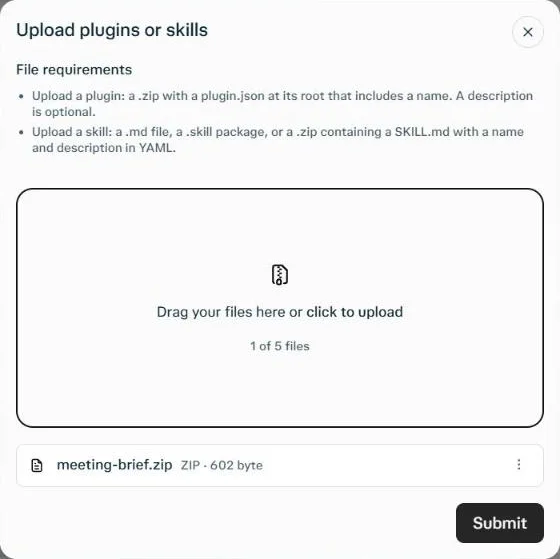
- Add custom, Upload plugin or skill. The upload window lists the file rules and takes up to 5 files at once.
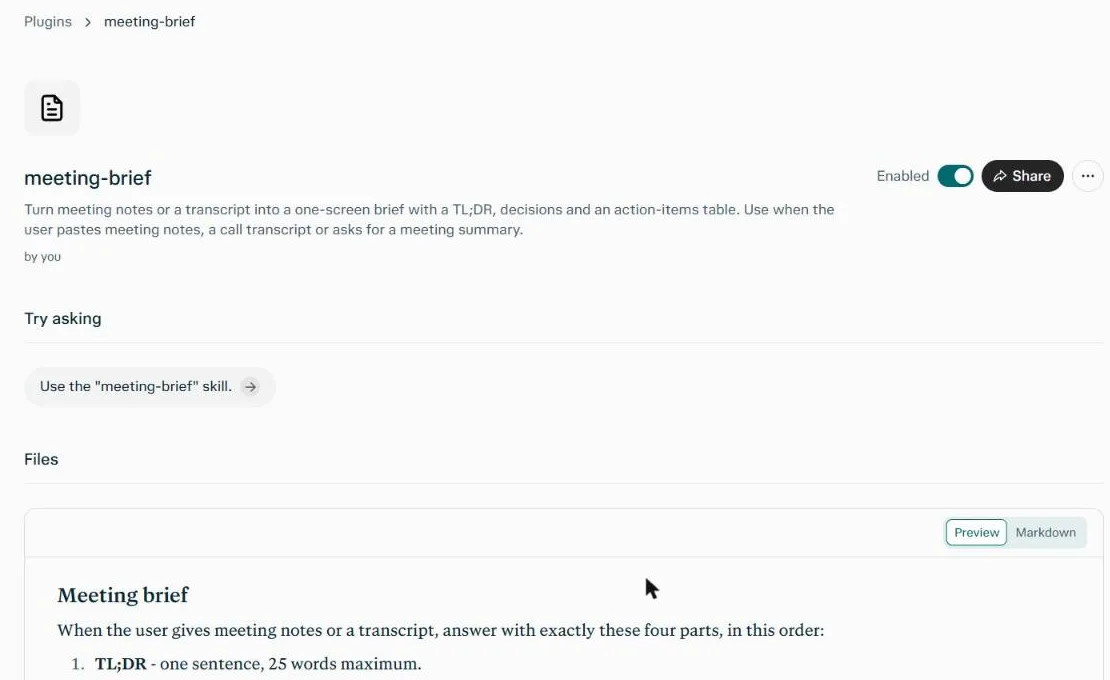
- Drop the file and click Submit. Perplexity opens the skill’s page with an Enabled switch already on, a “Try asking” shortcut and a preview of the instructions.
- Test it in Computer. On the home page, switch the box from Search to Computer and send a request the description covers. You do not need to name the skill.
On this page
What was in the skill we tested?
---
name: meeting-brief
description: Turn meeting notes or a transcript into a one-screen brief with a TL;DR, decisions and an action-items table. Use when the user pastes meeting notes, a call transcript or asks for a meeting summary.
---

# Meeting brief

When the user gives meeting notes or a transcript, answer with exactly these four parts, in this order:

1. **TL;DR** - one sentence, 25 words maximum.
2. **Decisions** - a bulleted list of what was decided. If nothing was decided, write "No decision recorded."
3. **Action items** - a table with the columns Owner | Task | Due date. Use "Unassigned" or "No date" when the notes do not say.
4. **Open questions** - what is still unclear, as a bulleted list.

Rules:
- Use only what is in the notes. Do not add facts, names or dates.
- Keep the whole brief under 150 words.
- Do not search the web.
The description is what Perplexity reads to decide when to load the skill, so write it as “what it does” plus “use when”.
Did the skill change Perplexity’s answer?
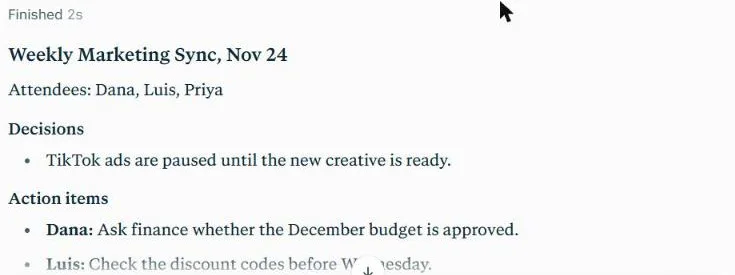
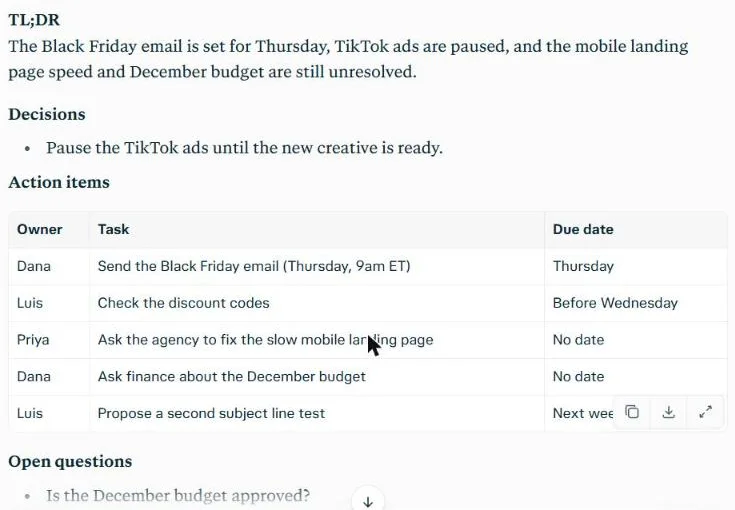
Yes. We sent the same meeting notes to Computer twice, once before installing the skill and once after, in new sessions, without naming the skill.
| Before the skill | After the skill | |
|---|---|---|
| Time | 2 seconds | 3 seconds, with “Loading skill user:meeting-brief” shown |
| Structure | Decisions, Action items, Key updates, Open items | TL;DR, Decisions, Action items, Open questions, exactly as written in the skill |
| Action items | A bulleted list | A table with Owner, Task and Due date, “No date” where the notes gave none |
| Accuracy | Faithful to the notes | One overreach: it listed Dana as the person sending the Black Friday email, while the notes only say she announced the date |
Our take. A skill is the quickest way to get the same format every time without pasting instructions. Keep the rules short and testable, and still read the output: our “do not add facts” rule did not stop one wrong owner.
Do you need a paid plan to use skills?
No for installing: we added the skill on the free plan. Running it uses Perplexity Computer, which “runs on credits”; the free plan did not show a balance in our test, and the Usage menu offered an upgrade “for full access to Computer”. Expect limits on heavy use without a paid plan. Plans are compared in our Perplexity review.
How do you turn a skill off or remove it?
Open Plugins, Skills, the Installed filter, then the skill. The Enabled switch turns it off without deleting it; the menu next to Share holds the other options.
Questions about Perplexity skills
Where are skills in Perplexity? In the left sidebar under Plugins, in the Skills tab. They are used by Perplexity Computer.
What file does Perplexity accept for a skill? A .md file, a .skill package or a .zip containing a SKILL.md with a name and a description in YAML.
Do I have to call the skill by name? No. In our test it loaded by itself because the request matched its description.
Can I share a skill? The skill page has a Share button; skills you upload are marked “by you”.
Prefer Claude? See how skills and connectors work in our AI tutorials. Other ways to put AI to work in your tools are in AI projects for beginners.
Update log
Nov 26, 2026: tutorial published from our test on a free account: install, before and after.
Spotted an outdated price or an error on this page? Request an update. Want us to cover another tool? Suggest a review.