What you need before you start
UXMagic turns a written description into an editable screen on a canvas. The help center says the single biggest driver of output quality is the prompt, so most of the preparation is writing.
The product in one line, the screens you want, and the audience. The help center names these as the first three things a prompt must carry.
Brand colors as exact codes, and the fonts, if they have to be respected. The help center warns that a soft mention gets interpreted while an exact instruction gets followed.
Real copy if the copy matters. Without it you get placeholder text that is fine for structure and wrong for a demo.
The journey rather than one screen, if the screens belong to a flow that shares one theme and one navigation.
Any reference, screenshot or requirements document you want the AI to read, attached to the same message so it reads all of it before designing.
An account. The free tier gives 20 credits every day, enough for about 3 screens a day, with no credit card required. Pro is $35 per month.
How the job is done with UXMagic
The order below follows the company’s help center.
Sign in at uxmagic.ai with Google or email.
Start a new project. A project is a container for screens that share one theme, so keep unrelated work in separate projects.
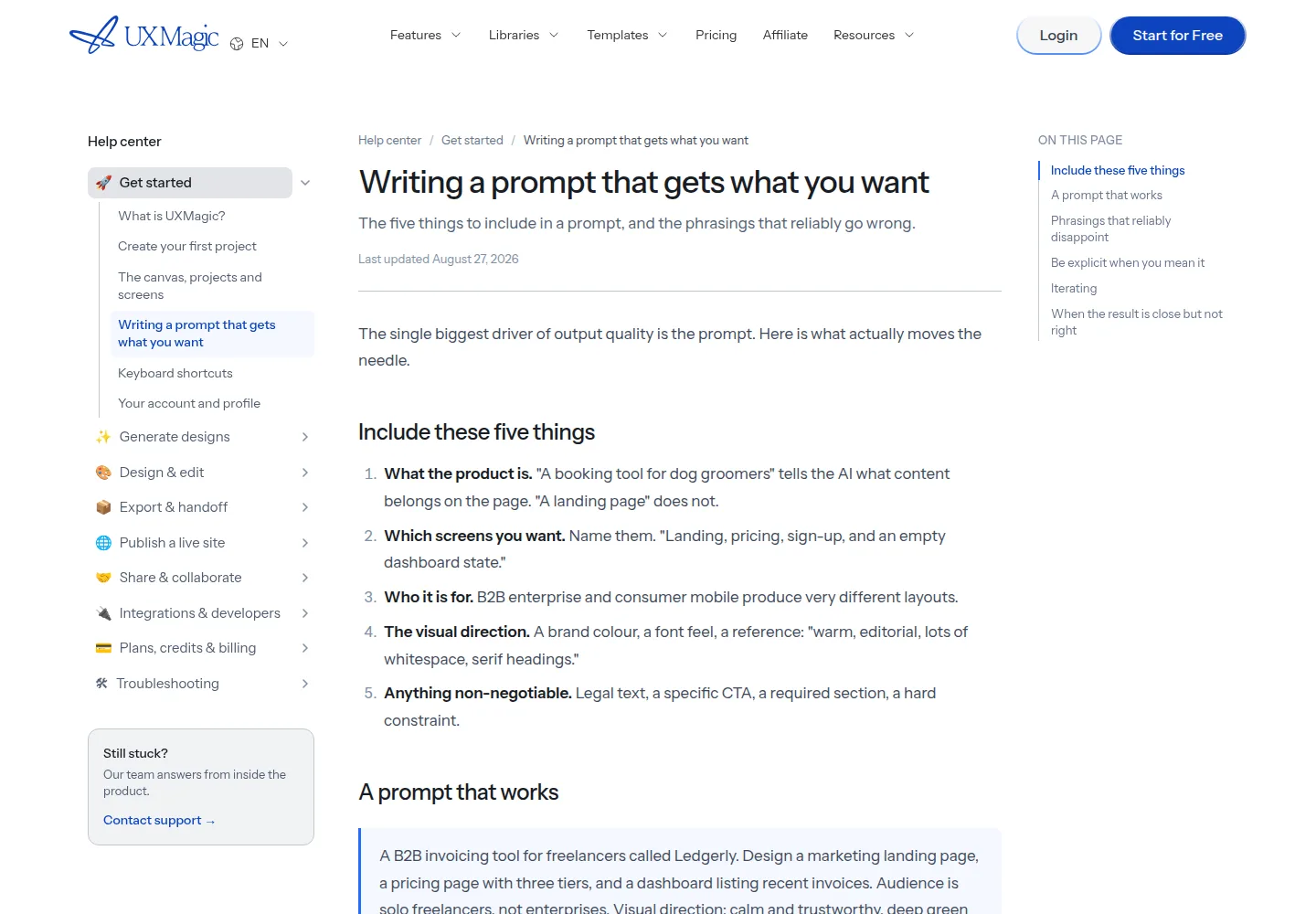
Describe what you want in the prompt box. The help center asks for five parts: what the product is, which screens you want, who it is for, the visual direction, and anything non-negotiable.
Their own worked example: “A B2B invoicing tool for freelancers called Ledgerly. Design a marketing landing page, a pricing page with three tiers, and a dashboard listing recent invoices. Audience is solo freelancers, not enterprises. Visual direction: calm and trustworthy, deep green as the primary color, generous whitespace, sans-serif. The landing page must have a Start free CTA in the nav and a section on getting paid faster.”
For a new project the tool usually proposes a screen plan before it designs anything. Add, rename or remove screens, then approve. The help center is explicit that fixing the plan is far cheaper than redesigning finished screens, so spend time here.
Screens are then designed one at a time and appear on the canvas as they finish.
Iterate. Use chat for structural and thematic changes, such as moving a section or re-theming the project. Use Edit mode to change text and swap images directly, which the help center describes as free of a generation call. Targeted edits to one section or one string cost far less than a rewrite, and a rewrite costs less than a full regeneration.
When the screen is right, take it out of the tool. You can export to Figma, export code in HTML, React or Tailwind, or publish it as a live site.
On this page
What to check in the result
The five prompt parts. If the audience or the visual direction is missing from the screen, the prompt was thin.
Device size. A mobile request should be genuinely re-laid out, not a shrunken desktop screen.
Brand. The exact codes should be used and no extra accent colors should appear.
Copy. Decide whether the text is real or placeholder before you show the screen to anyone.
Theme consistency across every screen. The help center’s rule is to check the canvas, not the chat reply. A message that reports a theme change as done does not prove the screens moved.
Contrast. Themes are validated for readable color pairings before they are applied, so a deliberate low contrast treatment is worth stating up front.
Completeness after a plan. Every screen in the approved list should exist. An empty frame usually means the run stopped early, often for credits.
Where it usually goes wrong
The help center lists the failures it sees most.
Vague instructions. “Make it pop” and “make it better” give no direction, and “like Stripe” is better replaced by the site URL and a clone request, or by naming the quality you actually mean.
Ten changes in one message. The help center says they interact, and recommends two or three at a time.
Fixing the theme screen by screen, which hides the symptom and guarantees drift later.
Asking for dark mode from Edit mode on a single element, a path the documentation says can hard code colors instead of re-theming.
Regenerating a whole screen for a partial miss or a typo. Regeneration is described as one of the most expensive actions available, and it discards the parts that were already correct.
Prompting one screen at a time when the screens were always meant to share a theme and a navigation.
Running out of credits mid flow, which leaves correctly named but empty frames on the canvas.
What the plan allows
The pricing page lists these tiers.
Free: no charge, 20 free credits every day, up to 3 screens daily, credits refreshed daily, no credit card required. Pro: $35 per month, 2,400 monthly credits, up to 400 screens, unlimited projects and no daily limit. Billed annually it is $17.5 per month, which is $210 for the year, half the monthly price. Enterprise: custom pricing, with custom credits, unlimited AI generated screens, unlimited team seats, a team admin dashboard, and custom contract and invoicing.
Credits cover AI generation, in the app and through the MCP server and the Figma plugin. Reading a screen, building a theme and answering a clarifying question are free, and paid plans have no daily credit limit.
What we did not do
Nobody on this site has designed anything in UXMagic. We did not create a project, write a prompt, approve a screen plan or export a file. Everything above comes from the company’s help center, listed in Sources.
We did not test the canvas, so we describe controls only with the names those pages use. We did not measure how long a screen takes to generate, and we did not run a prompt ourselves to see whether the five part recipe produces a usable screen. We report plan level figures and leave the per action credit costs out of this guide.
Sources
Read on October 3, 2026.
Create your first project, https://uxmagic.ai/help/getting-started/create-your-first-project, publisher update date September 3, 2026. Writing a prompt that gets what you want, https://uxmagic.ai/help/getting-started/writing-a-good-prompt, publisher update date August 27, 2026. Text to UI, https://uxmagic.ai/help/generate/text-to-ui, publisher update date August 27, 2026. Every way to generate a screen, https://uxmagic.ai/help/generate/ways-to-generate-a-screen, publisher update date August 27, 2026. Themes and style guides, https://uxmagic.ai/help/design-and-edit/themes-and-style-guides, publisher update date August 27, 2026. My style guide or theme did not apply, https://uxmagic.ai/help/troubleshooting/style-guide-did-not-apply, publisher update date August 27, 2026. A screen is blank or empty, https://uxmagic.ai/help/troubleshooting/blank-or-empty-screens, publisher update date August 27, 2026. How credits work, https://uxmagic.ai/help/account-and-billing/how-credits-work, publisher update date September 3, 2026. Plans and limits, https://uxmagic.ai/help/account-and-billing/plans-and-limits, publisher update date September 3, 2026. Pricing, https://uxmagic.ai/pricing, read October 3, 2026.
Update log
October 3, 2026: first version, built from the company help center listed above. No hands on test has been done.