What you need before you start
- The video itself, either as a file or as a link you can paste.
- The source language of the audio and the one target language you want. Zeemo’s video translator page describes bilingual subtitles across many language pairs, so name your pair before you start and stay with it for the first run.
- A Zeemo account. The pricing page lists a Free tier, so you can open the workspace before you pay anything.
- A decision about the output you want. A captioned video and a standalone .srt file are two different exports, and the company’s help content treats them separately.
- Patience with a queue. The FAQ states that processing runs in the cloud, so you can leave the site or close it while the transcription continues.
How the job is done with Zeemo
The company’s video translator page describes the flow in one sentence: import your videos, translate subtitles, and export your video with bilingual subtitles. That sentence is the spine of the workflow.
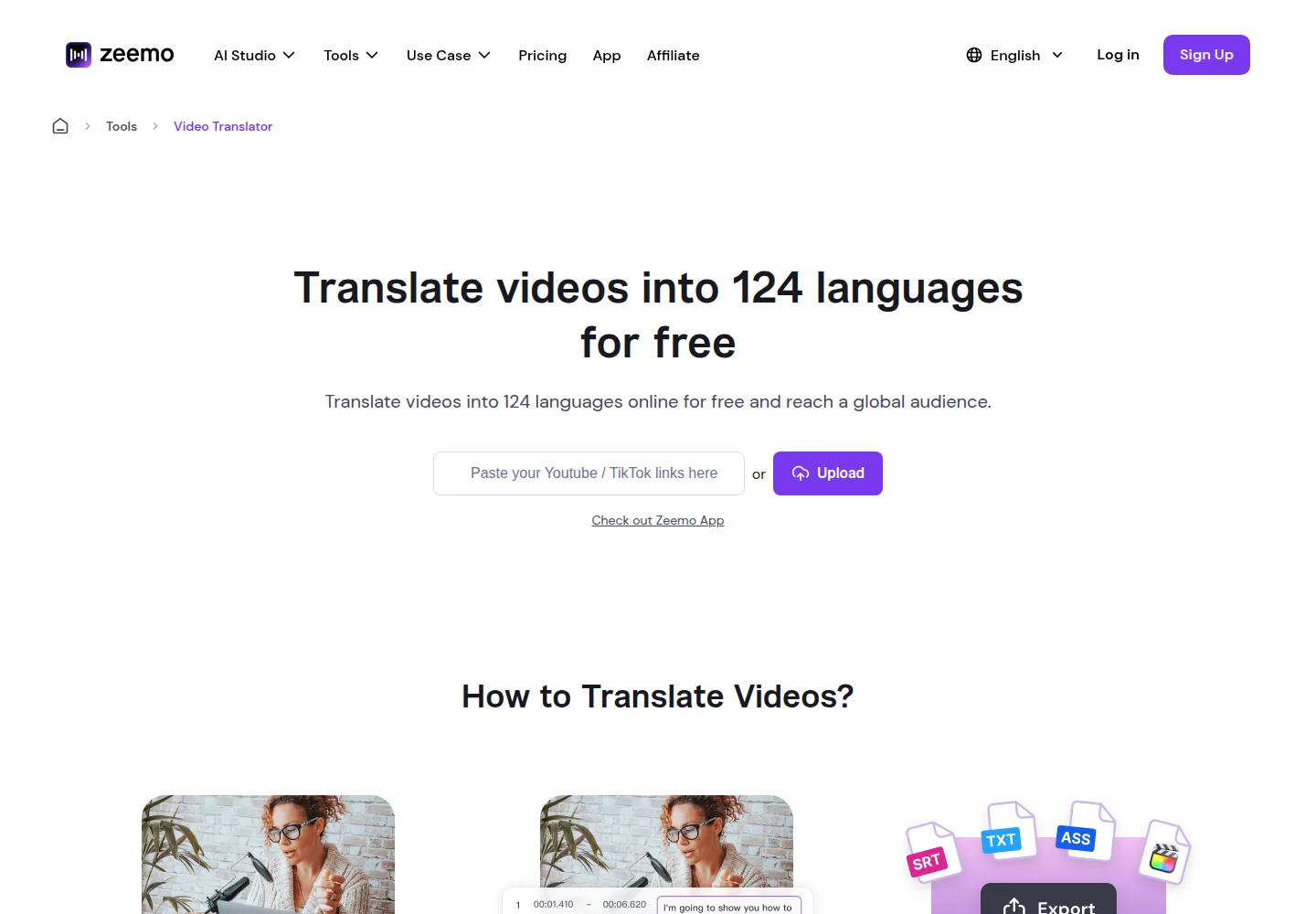
The practical order looks like this.
- Bring the video into Zeemo. Paste a link or upload the file into the workspace.
- Let Zeemo build the captions. The transcription step comes first, and the translated track is built on top of it.
- Choose the target language. The company states that the tool supports a wide range of language pairs, from English to Spanish or French to Mandarin as examples, and that it can produce bilingual subtitles in a single file.
- Adjust the subtitle style. The company lists font style, size, color, and position as adjustable, and describes the result as styled to fit the video.
- Export. Zeemo can composite the subtitles into the video, and it can hand you the .srt file for use elsewhere.
Two publisher notes matter while you wait. The FAQ states that transcription time is the accumulated length of the videos that use the caption function, so the meter and the queue are connected. The FAQ also states that a video under one hour can take about 5 to 10 minutes, depending on the video length and the system workload. That figure is the company’s estimate, not a guarantee.
When the job finishes, the FAQ directs you to Workspace, then Projects, for the completed video. An email notice is part of that flow.
On this page
What to check in the result
- Sync. Read the first minute and the last minute of the translated track. Drift shows up at the edges first.
- Names, brands, and jargon. Proper nouns are where translation slips, and every one of them is worth a manual pass.
- Bilingual layout. Check the order of the two languages on screen and the line breaks. A bilingual file doubles the text on screen, so crowding is a real risk.
- Style settings. Confirm the font, size, color, and position survived the export, not just the preview.
- The .srt file on its own. Open it in a plain text editor before you hand it to anyone.
- Export quality. The FAQ states that Zeemo supports original quality export and that the export does not affect picture quality. Verify that on your own file rather than taking it on trust.
Where it usually goes wrong
The company’s FAQ is the clearest list of known failures, and it is worth reading before you start.
- A black background appears behind the subtitles in another editor. The FAQ says to open the .srt file in that editor and set the background color opacity to 0 percent.
- Edits to position, size, or font do not show up after you import the .srt elsewhere. The FAQ suggests keeping the other editor running, opening the .srt file with Notepad, making a change, and saving it so that editor refreshes. If that fails, delete the file in that editor and import it again.
- Subtitles look slightly blurry after export. The FAQ explains that subtitles and video are previewed separately and then composited into a single file, which can slightly affect subtitle quality.
- The tool reports error codes and the video screen will not display. The FAQ says to clear the cache and try again, then contact support if the problem persists.
- Billing questions. The FAQ states that a website subscription can be refunded within 48 hours if no credits were used, and that App Store or Google Play purchases are handled by those platforms.
What the plan allows
The pricing page lists four tiers, and credits are the meter behind all of them.
- Free: no charge, with 10 credits.
- Pro: US$9.99 per month on monthly billing and US$8 per month when billed yearly, with 3,600 credits per year.
- Expert: US$19.99 per month on monthly billing and US$13.39 per month when billed yearly, with 7,200 credits per year.
- Business: US$23.99 per month on monthly billing and US$16.07 per month when billed yearly, with 7,200 credits per year. Two seats are included, and each extra seat is listed at US$5 per seat per month.
- The yearly view of the free tier shows 120 credits per year.
Video and image generation spend credits at the rates the pricing page lists. The listed examples include 60 credits for a 5 second Seedance 2.5 720p clip and between 2 and 8 credits for a single 1080p image depending on the model. Subtitle work draws on transcription time instead, which the FAQ defines as the accumulated length of your captioned videos. Read the credit table before you commit to a long video.
What we did not do
We have not used Zeemo. The steps above follow the company’s public pages, the video translator tool page and the FAQ, both read on October 3, 2026. We did not open an account, upload a video, run a translation, or export a file. We did not test the editing tools, the credit consumption, the bilingual layout, or the export quality statement. Where this guide touches a time or a quality claim, the source is the company, and the wording is theirs.
Sources
- https://zeemo.ai/tools/video-translator (read October 3, 2026)
- https://zeemo.ai/tools/add-subtitles-to-video (read October 3, 2026)
- https://zeemo.ai/faq (read October 3, 2026)
- https://zeemo.ai/pricing (read October 3, 2026)
Update log
- October 3, 2026: first version, built from the company’s public documentation.