What you need before you start
- A supported browser: Chrome, Edge, Firefox, or Safari. The extension also ships as an app for mobile and desktop.
- The extension installed and pinned in the browser toolbar.
- The page you want to read, opened in the browser. Normal websites work. Browser default pages, other extensions pages, and the browser’s own extension store pages cannot be translated.
- A decision on the display: bilingual, which shows the original text and the translation together, or translation only.
- An account for the paid models. The free plan covers web page translation, and Pro and Max add advanced models and higher volume.
- A note on alternatives: DeepL, Google Translate, and Trancy cover parts of the same job, but a full bilingual side by side page view is the specific behavior described here.
How the job is done with Immersive Translate
The default behavior is bilingual reading: the original text stays on the page and the translation appears with it.
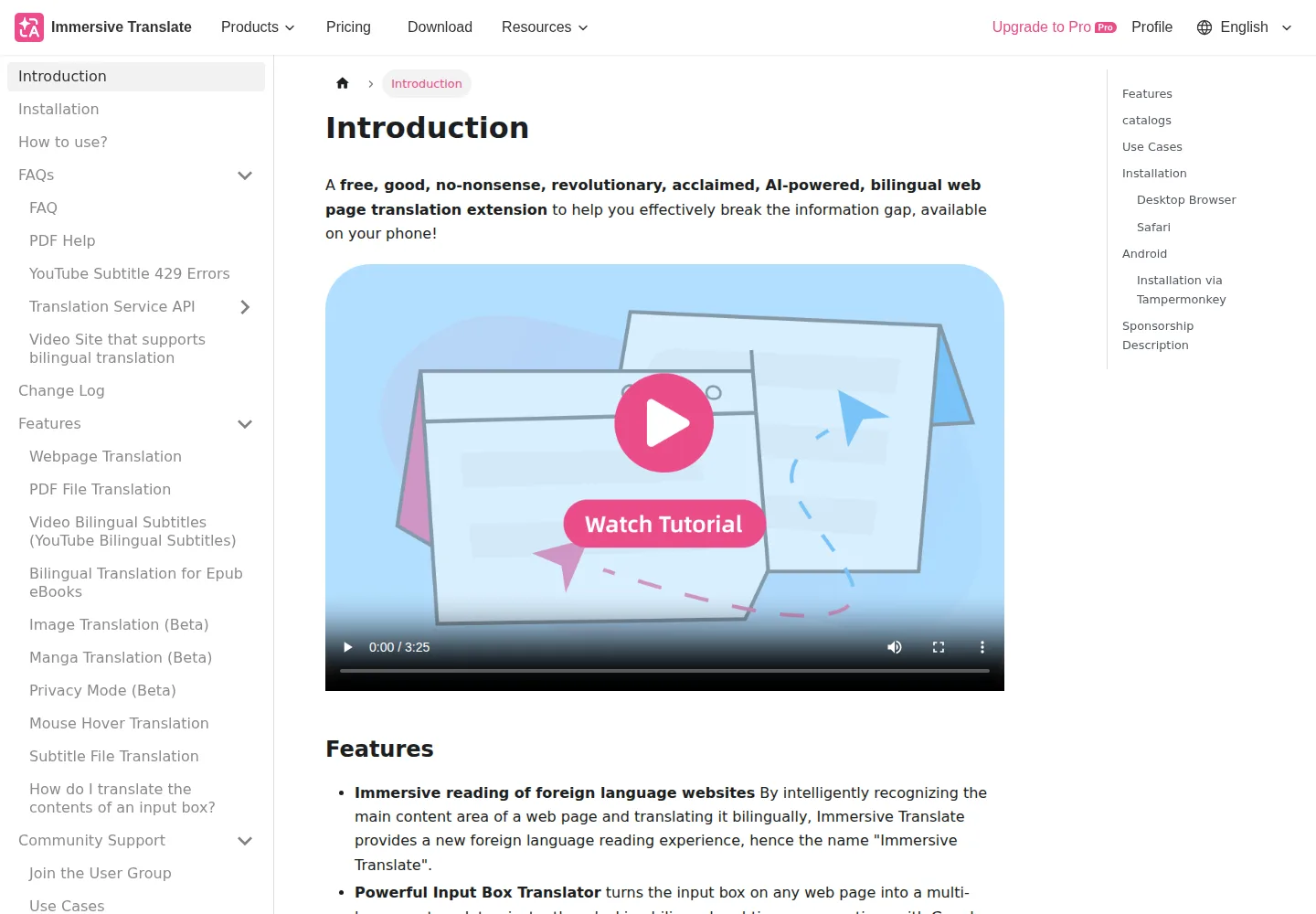
- Pin the icon. After installing, pin the Immersive Translate browser icon to the top right.
- Open a foreign language page in the browser.
- Translate it in one of three ways. Click the Immersive Translate extension icon and click Translate. Or click the Immersive Translate shortcut icon on the right side of the page. Or right-click anywhere on the page and select Translate Page, or Show Original.
- Use the shortcuts. The published defaults are Alt plus A to translate and then to toggle the original text back, and Alt plus W to translate the whole page instead of the default smart content area. If those clash with another program, change them in the extension settings page, under Interface Settings, then Shortcut Management.
- Switch the display mode. Bilingual is the default. To switch between translation only and bilingual comparison, open the extension panel and use the button to the left of the translate button.
- Translate a PDF the same way. For an online PDF, open it in the browser, click the expanded icon, and click Translate the file. For a local PDF, right-click the extension icon, or left-click it and then More and then Translate Local PDF Files, upload the file, and translate.
- Check which engine is in use. The extension connects to more than twenty AI translation engines, including OpenAI, DeepL, Deepseek, and Gemini. The plan decides which engines you get and how much volume you have.
On this page
What to check in the result
- The page layout holds, and in bilingual mode each paragraph shows the original and the translation together.
- The engine and model match your plan. Free uses the standard setup. Pro adds advanced models such as Qwen 3.5 Plus and DeepL Pro, with 20 million tokens per month and PDF Pro at up to 1000 pages per month. Max adds a top tier model with 2 million tokens per month, an advanced model with 50 million tokens per month, and Gemini 3.1 Pro.
- The volume is monthly. The company’s quota page states that benefits refresh each month and that unused volume does not roll over to the next month, even on an annual plan.
- Free usage is unlimited for web page translation, PDF translation, YouTube bilingual subtitles, bilingual e books, the input box, and offline image translation, subject to anti abuse and fair use rules.
Where it usually goes wrong
- No permission to translate the current page. Browser default pages, other plugin pages, and the browser’s extension store cannot be translated.
- A setting does not seem to apply, for example on a video or a meeting page. The help center says a page refresh usually fixes it.
- You see only the translation, or only the original. You are in the wrong display mode. Switch it with the button to the left of the translate button in the panel.
- The default shortcut clashes with another program. Change it under Interface Settings, then Shortcut Management.
- The monthly volume runs out early. Unused volume does not carry over, so a heavy month uses the whole cycle.
What the plan allows
Prices are shown in euros on the pricing page.
- Free: free to use, with unlimited web page translation, PDF translation, YouTube bilingual subtitles, bilingual e books, the input box, and offline image translation, subject to fair use rules.
- Pro: 8.99 euros per month, or 107.88 euros per year. It adds advanced translation models, 20 million tokens per month, Qwen 3.5 Plus, DeepL Pro, Pro exclusive advanced features, and PDF Pro at 1000 pages per month.
- Max: 16.99 euros per month, or 203.88 euros per year. It adds a top tier translation model with 2 million tokens per month, Gemini 3.1 Pro, an advanced translation model with 50 million tokens per month, and the Pro features.
- Team plans are also listed, including a yearly option. The page shows a 3 day free trial for the paid plans, with the renewal price stated after the trial.
What we did not do
We have not used Immersive Translate. No extension was installed and no page was translated by us. The steps above come from the company’s own documentation, read on 3 October 2026. We did not compare engine output quality, we did not test the bilingual display on a real page, and we did not measure token use against the monthly quotas. We did not confirm how the Team plan billing or the trial renewal works in practice.
Sources
- immersivetranslate.com/en/docs/usage, How to use, read 3 October 2026.
- immersivetranslate.com/en/docs/features/webpage/, Webpage Translation, read 3 October 2026.
- immersivetranslate.com/en/docs/subscription-quota/, Subscription Quota, read 3 October 2026.
- immersivetranslate.com pricing page at https://immersivetranslate.com/pricing, read 3 October 2026.
Update log
- 3 October 2026: first version. Steps and labels built from the Immersive Translate documentation. No hands on test.